
Create an account
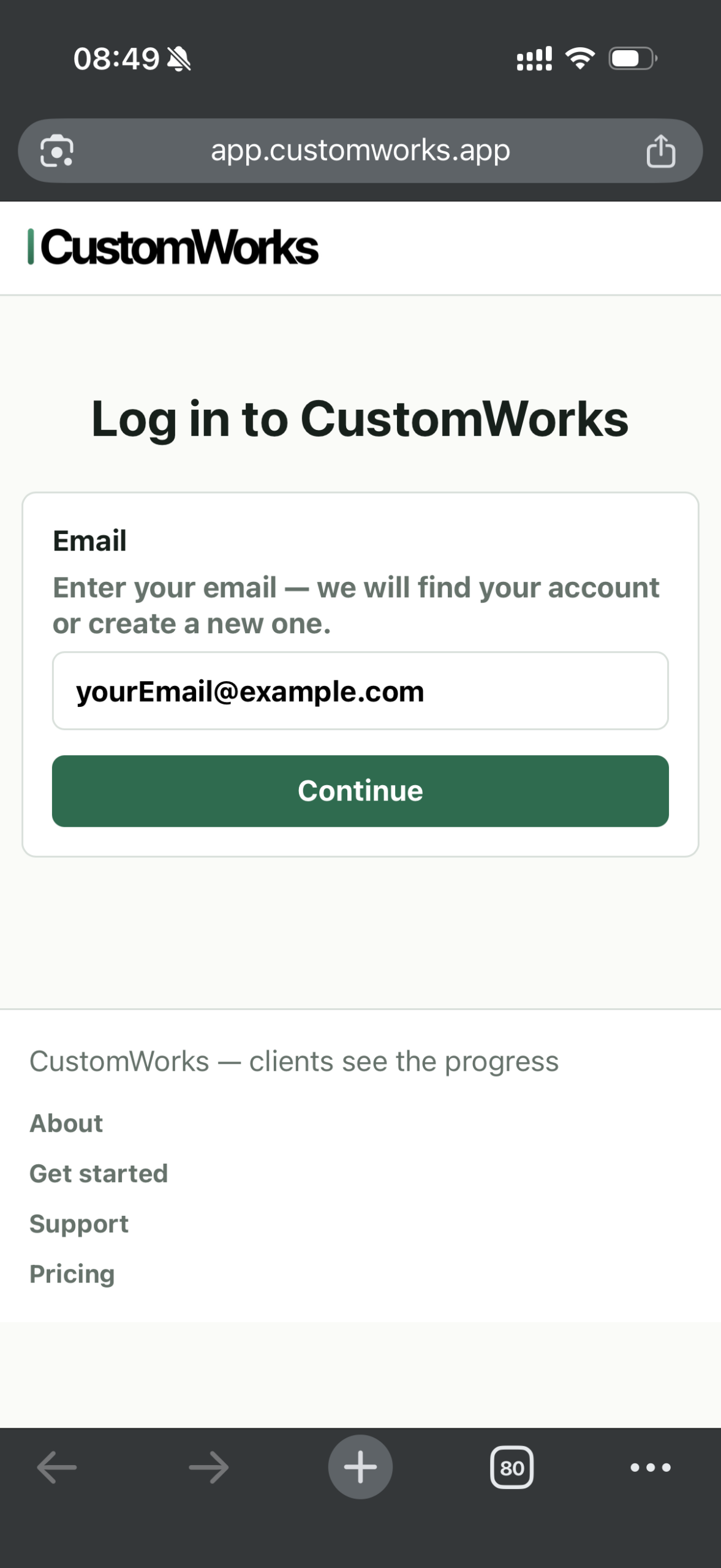
Go to https://app.customworks.app
Enter your email address.
If you do not have an account yet, a new account will be created. If you already have an account, you will receive a one-time login code by email.
When a new account is created, you will be taken directly to the app.
Confirm your email address. We will send you an email with a confirmation button.
That’s it — your account is ready.
Company profile
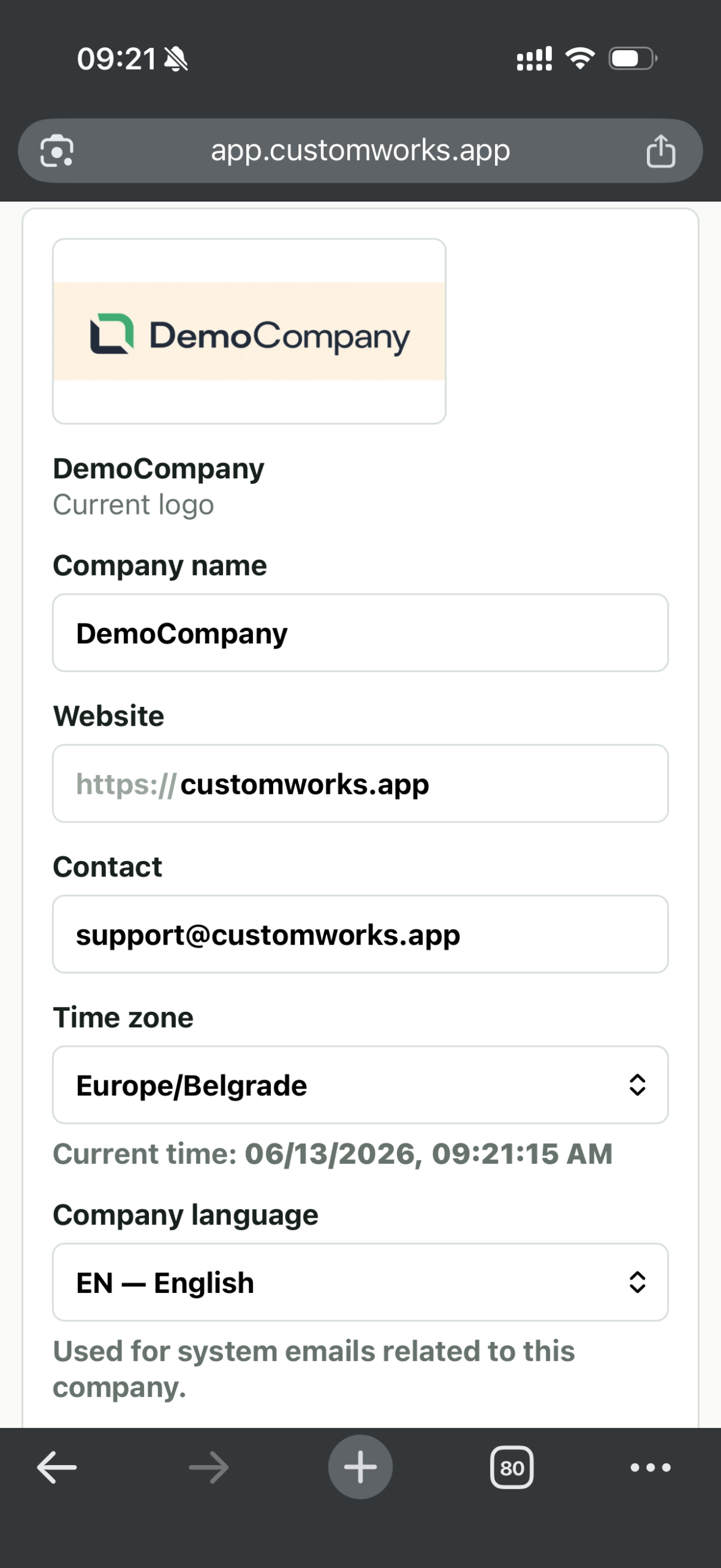
Go to: Main menu → Company
Your company is created with the default name Acme Ltd and without detailed company information.
Click Acme Ltd or open the Company section from the main menu. Fill in your company details. This information will be shown in your project feeds for clients.
Company profile fields:
- Company name
- Website
- Contact
- Time zone
- Logo
Your profile
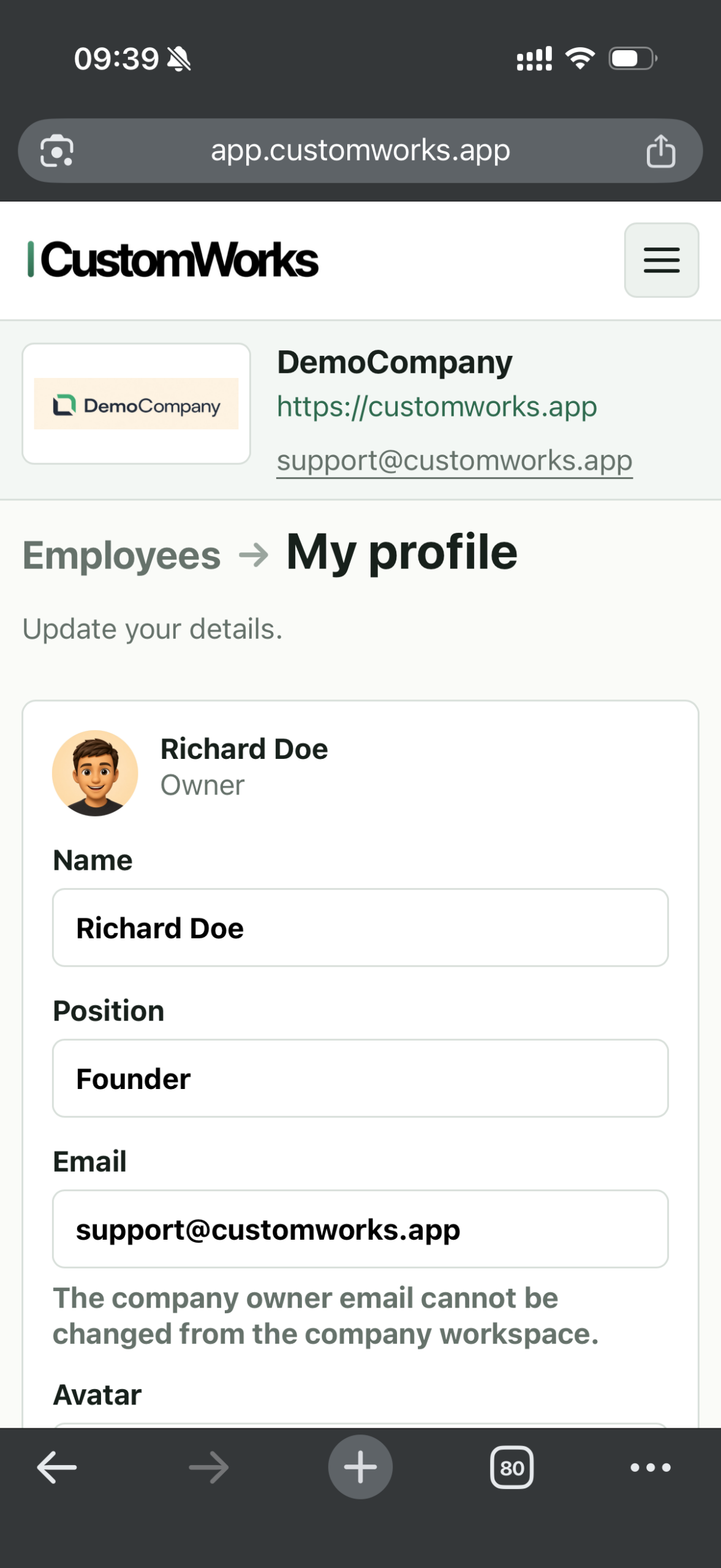
Your user profile is created together with the company. You are added as the owner, with the default name John Doe, no avatar, and no profile details.
Go to: Main menu → Employees → Edit
Open your own profile and fill in your details.
Profile fields:
- Name
- Position
- Avatar
Employees
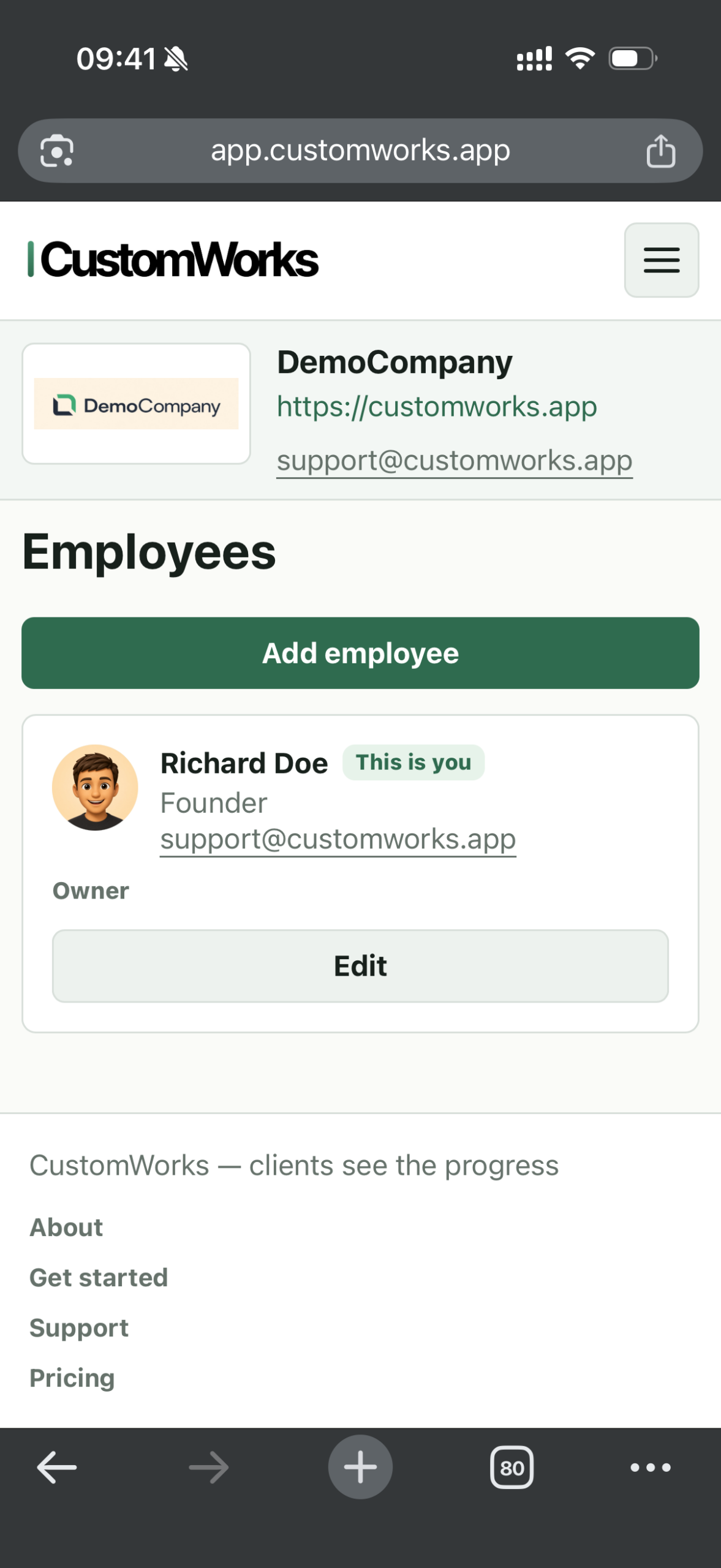
Go to: Main menu → Employees
Create team members by clicking Add employee.
Fill in the employee details:
- Role — Admin or Employee
- Name
- Position
- Avatar
Admin users can manage both employees and projects.
Employee users can manage projects only.
Use a real email address for each employee. They will use this email to receive one-time login codes.
Projects
Go to: Main menu → Projects
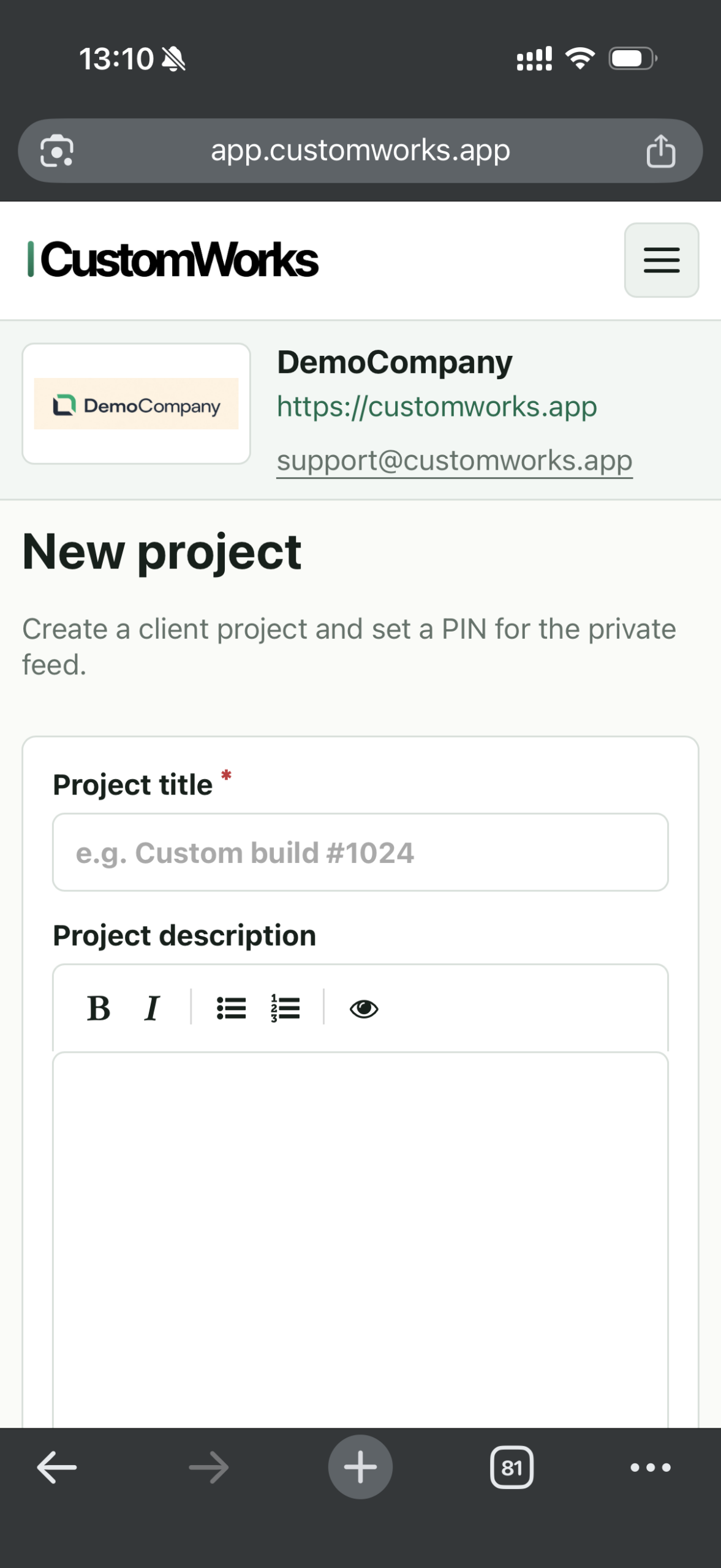
Create a new project by clicking New project.
Fill in the project details:
- Project title
- Project description
- Client name
- Client email for notifications, optional
- Project image
- Client PIN for feed access
The client PIN is generated automatically, but you can also set a custom PIN
Set up the client feed and share access
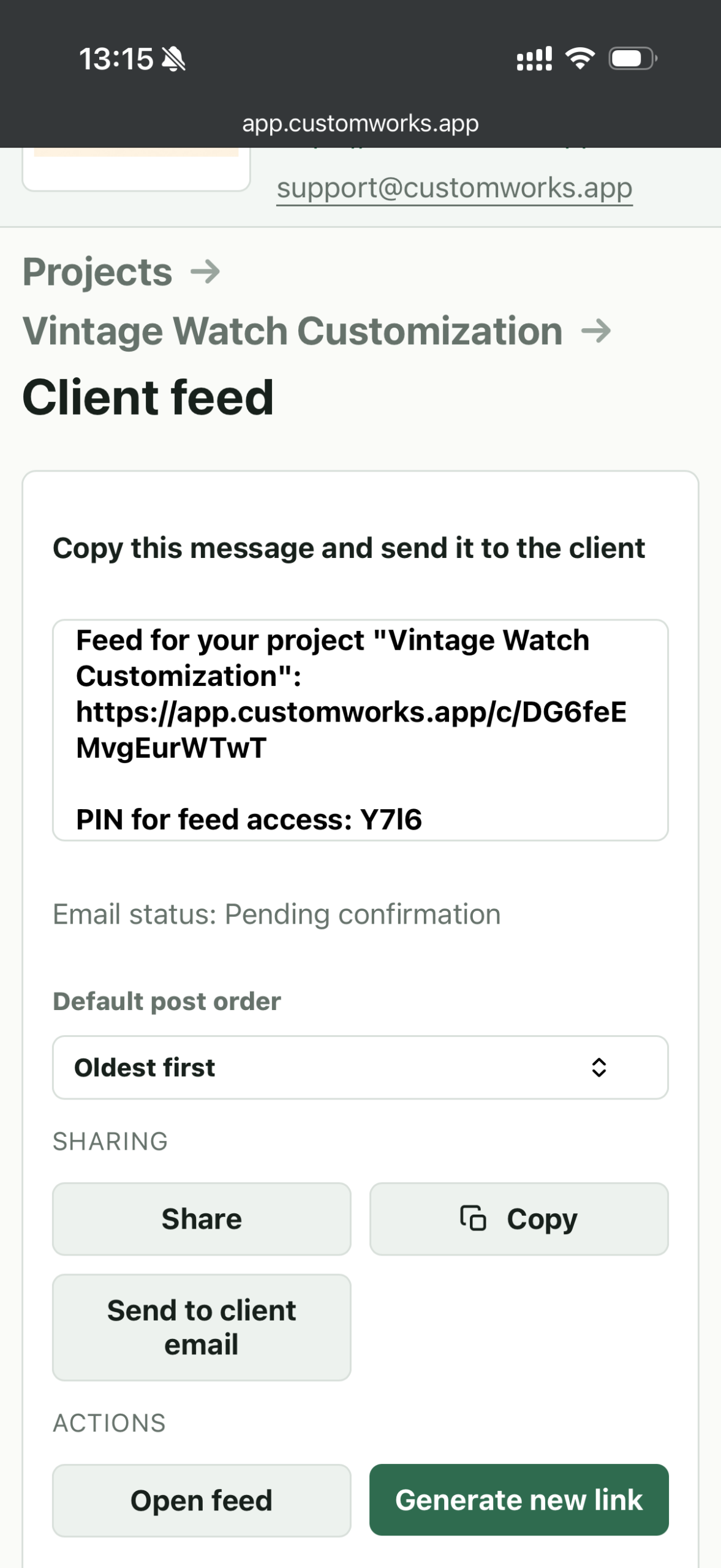
Set the Default post order for the client feed:
- Oldest first
- Newest first
Clients can also change the post order when viewing their feed.
Share the project feed link and PIN with your client using one of these options:
- Send to client email — available if a client email is set for the project
- Share — opens the standard sharing options on your device
- Copy — copies the feed link and access details to your clipboard
Add new posts
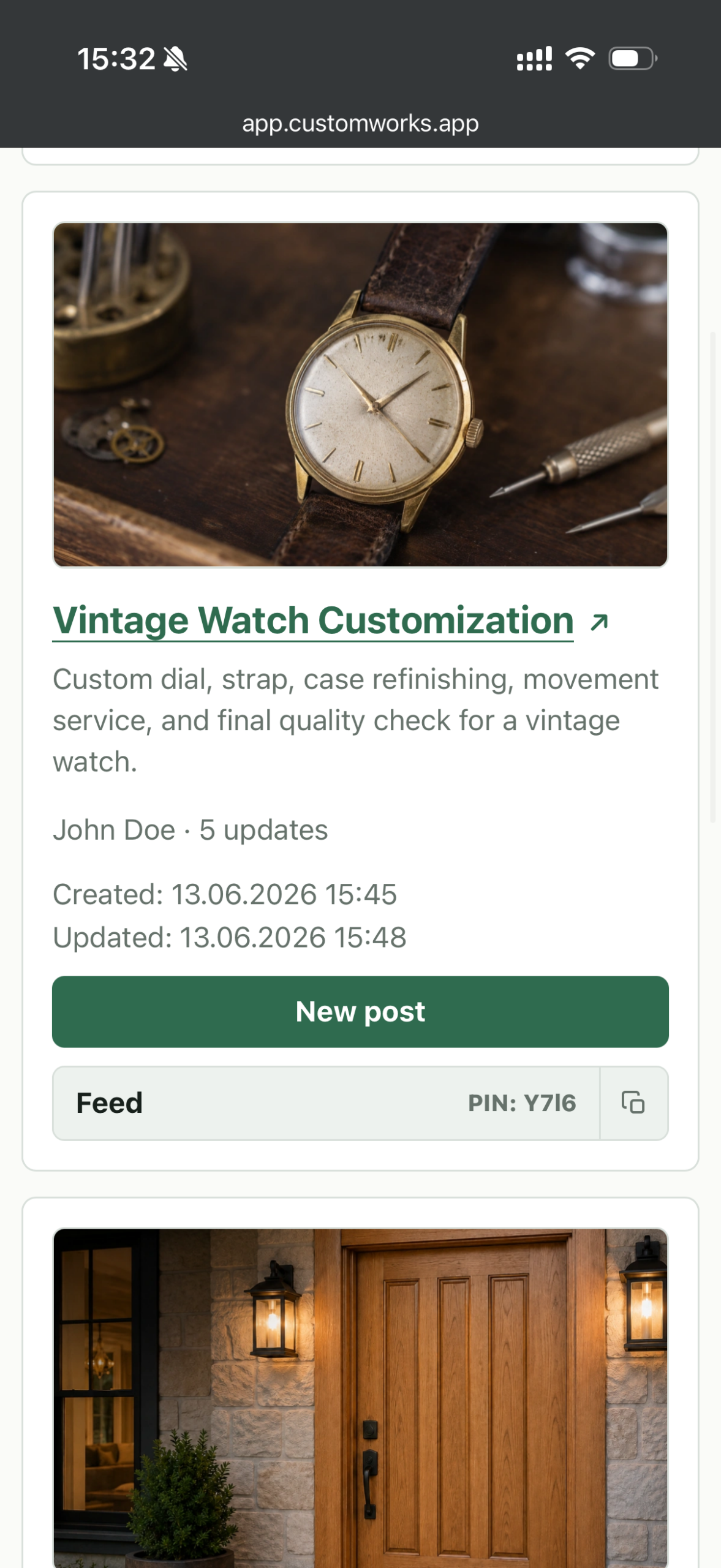
You can add a new post from the project list or from the project page by clicking New post.
You can also add posts using the project QR code:
Projects → [Project name] → QR code
You can place this QR code in your workshop, office, production area, or on site so your team can quickly open the project and post updates.
Archive projects
Archived projects are not billed.
Client feeds for archived projects are not available.
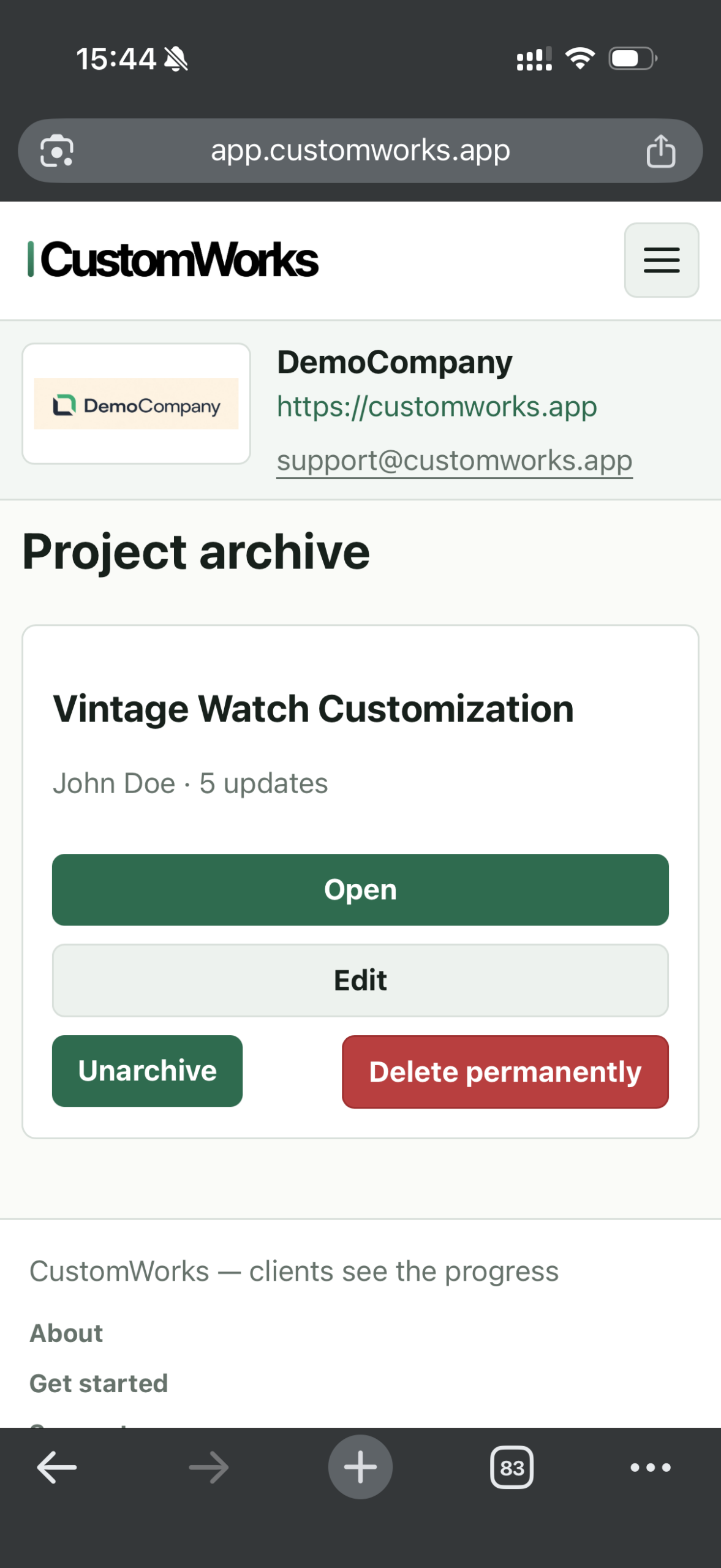
If a project is no longer active, you can move it to the archive. Open the project page and click Archive.
You can unarchive a project later. Open the archived project and click Unarchive.
When a project is unarchived, it becomes active again, its client feed becomes available, and the project may be included in the current billing period if it is above the free project limit.
Pricing
One active project and one active team member — the account owner — are included for free.
Active projects and active team members above the free limit are billed monthly and included in your invoice at the end of the billing period.
You can see your estimated charges for the current month in:
Main menu → Company
We expect invoices to be paid within 10 days after the end of the billing period. If payment is not received, the account returns to the free limit: 1 active project and 1 active team member, the account owner.
Additional projects and team members will be deactivated, but not deleted. You can reactivate them yourself after the invoice is paid.
Archived projects and deactivated team members are not billed.
Need help?
If you have any questions about using CustomWorks, contact us and we’ll be happy to help.